Creating a problem
Updated on August 5, 2026
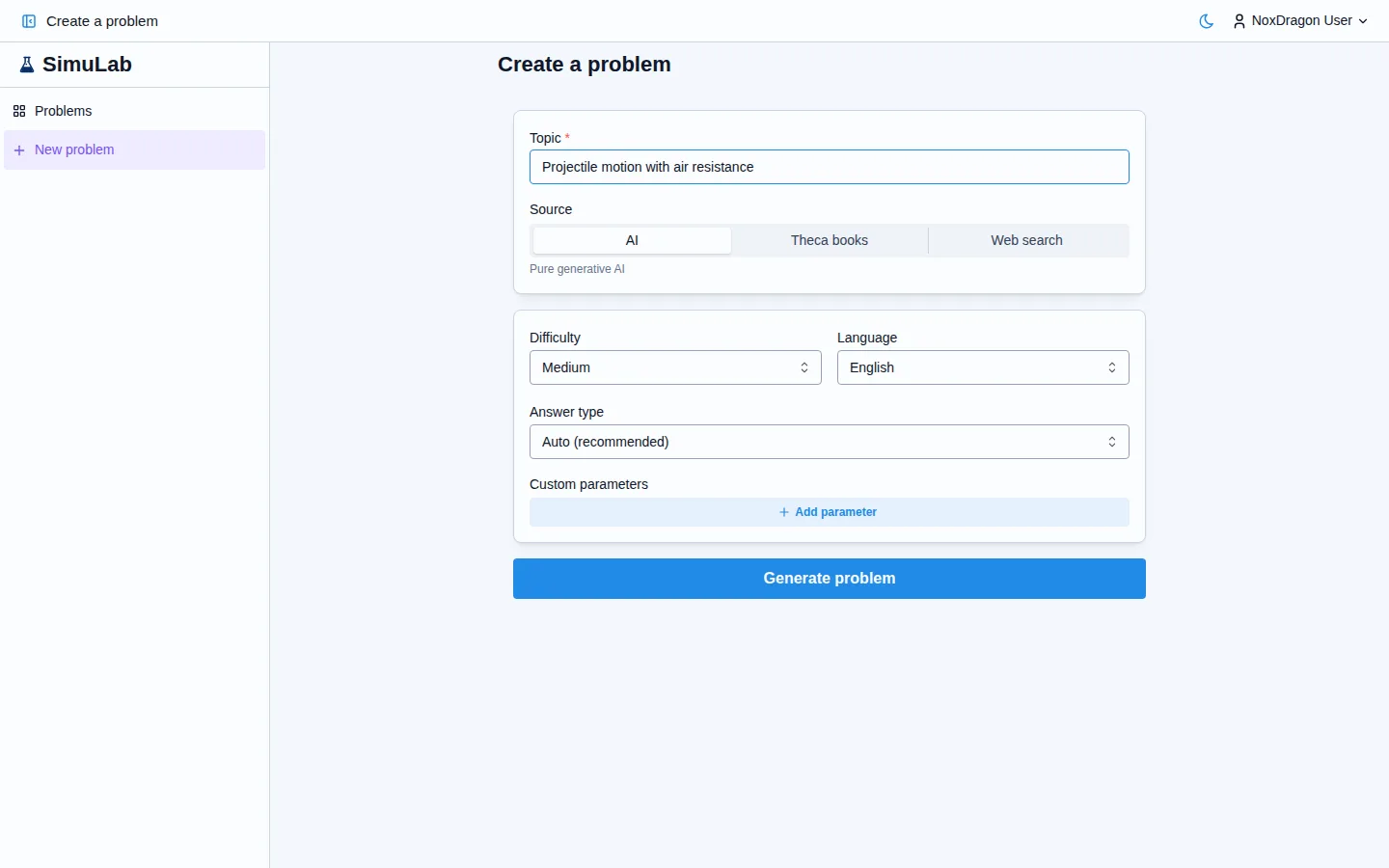
In SimuLab you can create problems in two ways: letting the AI build them for you, or writing them yourself from scratch. Either way, the structure is the same: a statement, an answer type, grading criteria, and optionally an animated scene.
The two ways to create a problem
Press Create problem in the navigation bar. You will see two modes:
- With AI — write a topic, choose your sources, and the AI drafts the statement, answer and grading. You can adjust the difficulty and answer type before generating.
- Manual — you write every part. Useful when you already have the exercise in mind and just want to load it into SimuLab.
With AI, the process runs automatically: the app shows progress while it searches sources, drafts and verifies. When done, press Open problem to start solving.
The parts of a problem
Every problem in SimuLab has these sections:
- Statement — the problem text, which can include formatting, lists and mathematical formulas.
- Answer type — defines how it is answered: a number, multiple choice, free text or step by step.
- Grading — what the app uses to evaluate your answer. It depends on the type chosen: test cases with tolerance for numeric, marked options for multiple choice, or a rubric for the AI to grade free text and step-by-step answers.
- Scene (optional) — an interactive animation or simulation that accompanies the statement.
General problem details
In the Details section you can configure:
- Title — the problem name, required.
- Topic (optional) — if left empty, the title is used for internal search.
- Difficulty — Easy, Medium or Hard.
- Language — the language in which the statement is written.
- Collection — the folder inside My problems where it will be saved.
- Topics — free tags to filter and search your problems.
You can change all these details after creating the problem by pressing Edit.
Frequently asked questions
Can I change the answer type after creating the problem? Yes. Open the problem and press Edit. Changing the answer type clears the previous grading data (test cases, choices or rubric), so you will need to set it up again.
Does the AI always generate an animated scene? No. The scene is optional and the AI only includes it when it adds value for the topic. If it does not generate one, you can add it manually in the editor.
How many problems can I create? The number of problems depends on your plan. See Plans and limits for details.
Next step
- Statement editor — how to write the statement with formatting and formulas.
- Answer formats — when to use each format and how to configure it.
- Rubrics and grading — how the AI evaluates written answers.